
Manual Triggers
Running the workflow on demand instead of waiting for tomorrow.
Sometimes you don't want to wait for tomorrow's scheduled run. Borker has two manual trigger paths.
Run workflow button
The orange Run workflow button on the Command Center runs the daily workflow immediately with your current automation settings.
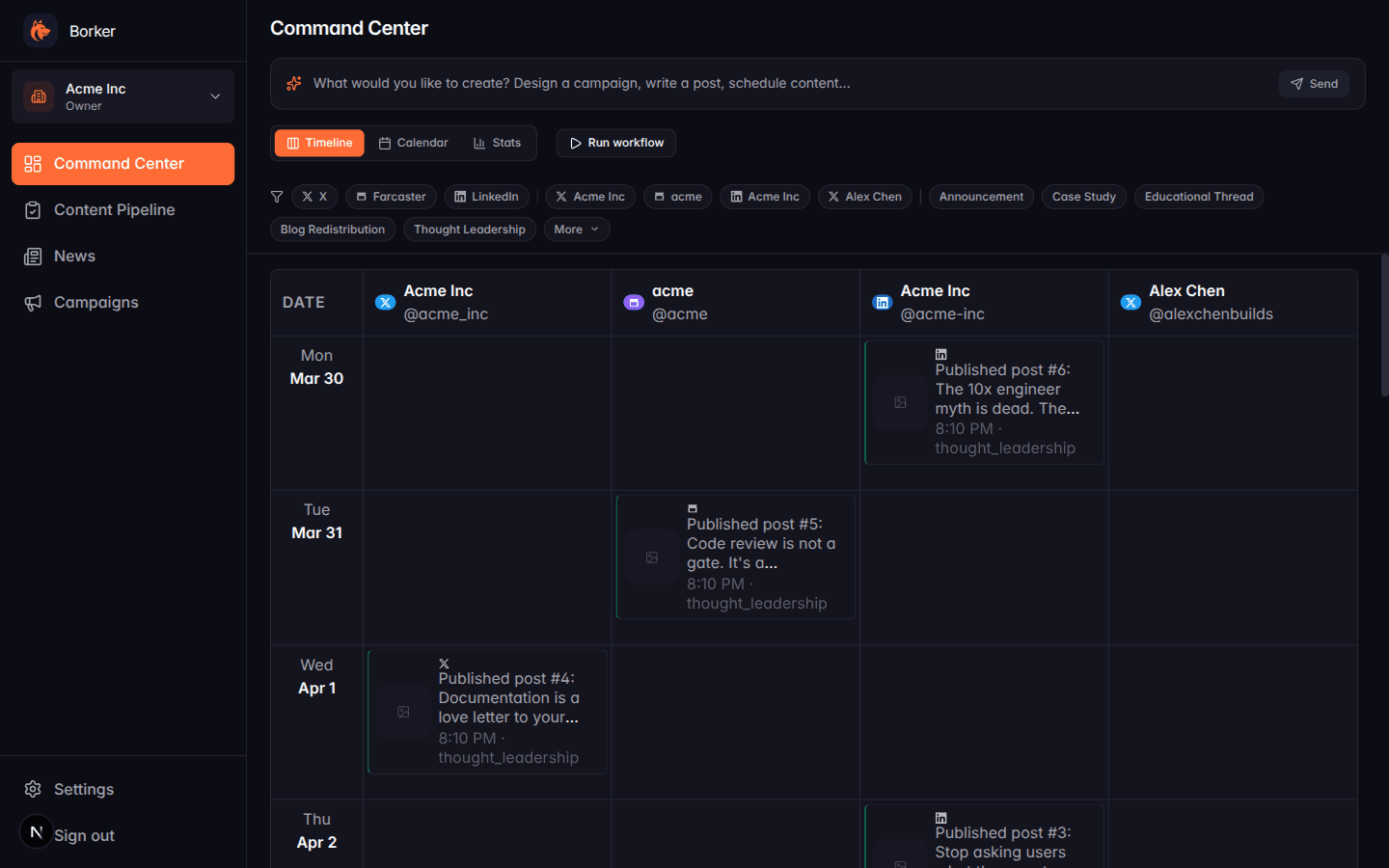
When you click it:
- Borker checks which automation toggles are on (daily generation, news-reactive, auto-redistribute)
- Runs each enabled loop once
- Drops new drafts into Pipeline → Review
- Schedules anything already sitting in Approved into your next available calendar slots
- Shows a toast with the summary ("Generated 3 drafts, 1 reactive, 0 redistribute errors")
Step 4 runs even when every automation toggle is off. If you have approved content waiting, clicking Run workflow schedules it, and it publishes at whatever time it lands on. Check the Approved tab before using this button to test a settings change.
When to use it
- Testing new topics: add entries to Brand & Voice → Topics → Run workflow → see what you get
- Testing new keywords for news-reactive: refresh news first, then Run workflow
- Recovering from a failed run: if yesterday's automation failed or was skipped, trigger it manually
- Immediate content for a specific slot: if you realize today's slot has no content yet
Prompt bar (one-off content)
The prompt bar at the top of the Command Center is a different kind of manual trigger. Instead of running a full workflow, it generates exactly one piece of content based on your prompt:
- "Write an X post about our pricing changes" → one X post in Review
- "Write a LinkedIn post about the engineering culture of small teams"
- "Schedule a Farcaster cast for Wednesday" → creates + schedules in one step
The prompt bar bypasses the Decision Engine and your topic lists — it uses whatever you type as the brief.
Backfill (on redistribute feeds)
The Backfill button in Settings → News → RSS Feeds (only on redistribute-type feeds) is another manual trigger specifically for redistribution. It walks you through a 4-step wizard:
- Preview the feed contents
- Configure post count and spread
- Select channels
- Confirm and generate
This is the right trigger for bulk-importing historical blog posts into your Pipeline in one go. See Content Redistribution for details.
Scheduling
The manual triggers produce drafts in the Review tab. From there:
- Review and approve them
- Borker schedules them into your next available slots on the following daily run, or use Schedule on an item to pick your own time
- Let the publishing queue take over
Manual triggers respect your automation toggles. If news-reactive is off, clicking Run workflow will skip news-reactive even though you ran it manually. Toggle what you want on first.